If a customer asks for an update, how many places do you check before answering?
Maybe the request is in your email, the latest photo is in a text message, and the next step is written in a notebook. Everyone is doing their part, but keeping the information together has become another job.
That is the kind of problem a custom business portal can help address. It gives the right people a shared place to find information and move work forward. But before adding another system, it is worth asking what actually needs to become easier.
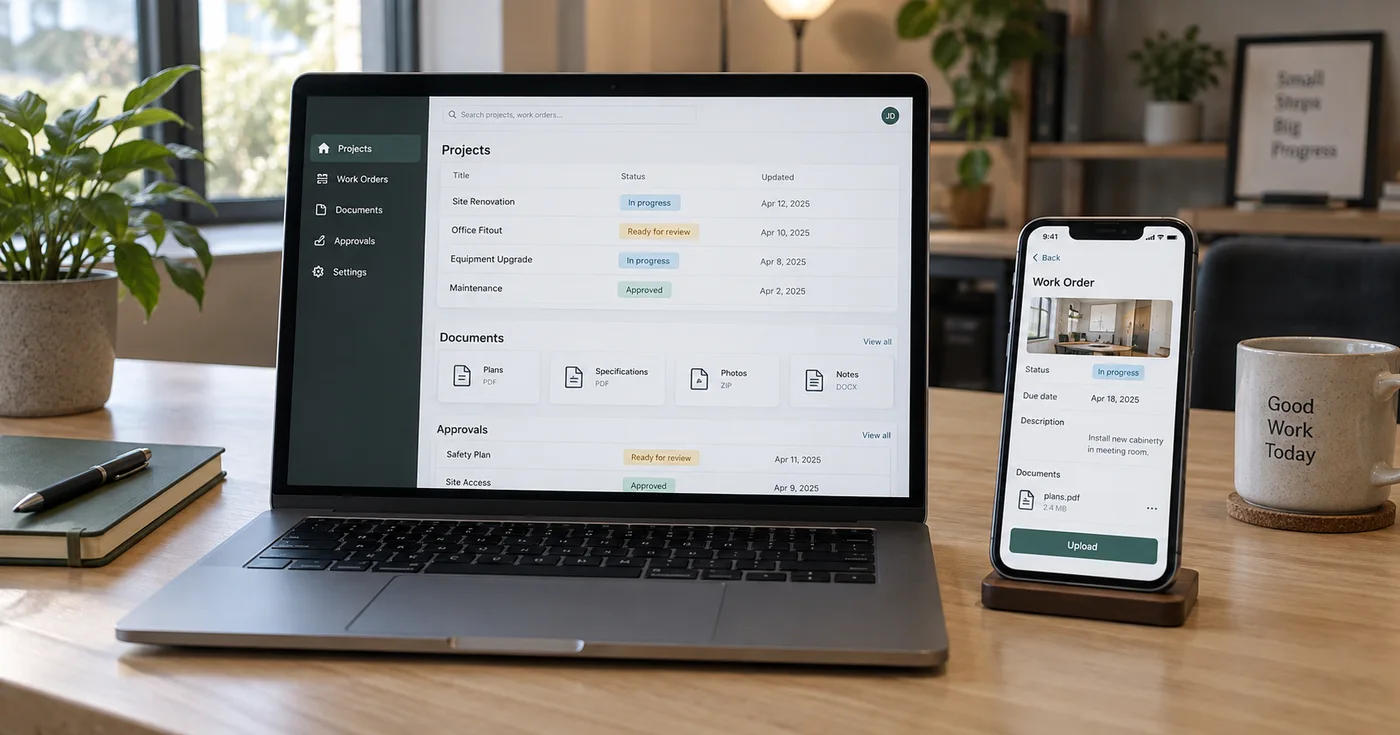
What is a custom business portal?
A custom portal is a website-based tool with a sign-in, built around specific tasks and the people responsible for them. Clients might use it to share documents or review a project. Employees might use it to submit job notes or check an assignment.
A dashboard is the overview inside that system: what is new, what is waiting, and what needs attention. The portal also lets people do the work behind those updates.
Your public website helps people understand and choose your business. A portal supports what happens once you are working together.
What could a portal help your business manage?
The most useful starting point is a repeated task. These are examples of possible workflows, not promises that every business needs the same features.
Job details that stay with the job
A repair business could give employees a place to select a customer or job, record their work, and attach photos or receipts. An office administrator could review those details before preparing an invoice in the business’s accounting system.
The first version might focus entirely on collecting complete job notes. It does not have to replace scheduling, bookkeeping, and every other tool at once.
A clear place for client documents
A project-based business could let each client find their own files, send requested information, and see what is ready for review. Instead of searching an email thread for the latest version, both sides would have an agreed place to look.
The plan should define which document is current, who can change it, and what happens after the client responds.
Approvals with an understandable next step
An organization could route a request or document to a designated reviewer. The person submitting it could see whether it was received, needs changes, or has been approved.
These details matter as much as the dashboard’s appearance. A status should tell someone what happens next—not leave them wondering whether anyone saw the request.
When an existing tool may be enough
A custom portal is one possible solution. Sometimes a clearer form, an organized shared folder, or better use of software you already pay for will solve the problem.
Before recommending a build, I would ask:
- Does your current software already handle this task?
- Is the difficulty a missing feature, or an unclear process?
- Would a connection between two existing tools reduce duplicate work?
- Who will keep the information current and help the team use it?
Custom development is worth exploring when a recurring, well-understood process does not fit your existing tools comfortably. The decision should account for setup, training, hosting, maintenance, and future changes—not just the initial build.
If ownership, accounts, or disconnected tools are the main difficulty, a digital cleanup may be a better first step.
What should a well-planned portal include?
You should understand how the tool will work in an ordinary day, including when someone makes a mistake or needs help.
Access that matches each person’s responsibility. Signing in should not give someone access to every customer or document. Permissions need to protect individual records and files, not merely hide buttons. OWASP’s authorization guidance recommends limiting access to what a person needs and checking permissions on every request.
Forms people can use on the devices they have. If employees submit updates from a phone, that experience needs deliberate design and testing. Clear labels, useful error messages, and confirmation that a submission succeeded are part of accessible form design, as described in W3C’s forms guidance.
A plan for information and ongoing care. The scope should explain what data is collected, how it is protected, how backups and recovery are handled, and who maintains the application. Ownership, export options, documentation, training, and support costs should be clear before launch. Sensitive or regulated information may require specialist review and a different hosting or software approach.
A sign-in screen alone does not establish that a portal is secure. Those responsibilities belong in the project plan and testing.
Start with one useful workflow
Instead of beginning with a long feature list, choose one task your team regularly works around.
For example: “Employees need to submit complete job notes from their phones, and the office needs to review them before billing.”
That gives the project a concrete path: identify the job, enter the details, attach what is needed, submit, and review. It also makes it easier to test whether the tool helps. Are notes more complete? Can the office find them? Is there less follow-up for missing information?
I design and build custom websites, portals, and business tools around those practical needs. Together, we can decide what belongs in the first version, what should stay in your existing software, and what can wait.
You do not need a technical brief to begin. If there is a task your business keeps working around, tell me what happens today and what you wish were easier.