Someone has looked through your services, decided you might be a good fit, and opened your contact page. They are ready to ask a question.
Then they meet a form asking for a company address, a detailed project plan, a firm budget, a deadline, and a phone number—even though they only want to know where to start.
A contact form should help that first conversation happen. It should give you enough information to respond thoughtfully without expecting a potential customer to have everything figured out.
For a small business, that does not necessarily mean a new website. Sometimes a more useful inquiry form is the custom addition your current site needs.
Decide what this form is supposed to do
Before choosing fields or button colors, finish this sentence: “After someone submits this form, I need to be able to…”
Perhaps you need to answer a question, check whether a job is in your service area, or arrange a conversation about a project. Those are different tasks from confirming a booking, taking payment, or collecting everything needed to begin work.
My starting point would be one clear purpose. A general inquiry can be brief. An event booking request may reasonably need a date and approximate guest count. A service estimate may depend on the location and type of work.
W3C's accessibility guidance recommends asking only for information needed for the process; irrelevant or excessive requests can discourage completion. It does not prescribe a magic number of fields. W3C's forms guidance.
The goal is a useful inquiry, not simply the shortest form possible.
Separate “needed now” from “helpful later”
Go through each question and ask what you would do differently because of the answer. If it will not affect your first response, consider saving it for the next conversation.
The GOV.UK Design System uses a similar discipline: establish why each question is necessary and what the information will be used for. Its guidance is written for public services, but that question-by-question review is useful for a small business, too. GOV.UK's question-planning guidance.
Here are examples of decisions I would work through with a business owner:
- Phone number: Is a call required to handle this request, or can the person choose email?
- Address: Would a city or ZIP code establish the service area, with the street address collected later?
- Budget: Does it determine whether you can help? If so, explain why you ask and consider a “Not sure yet” option.
- Project details: Would a short description get the conversation started instead of a lengthy questionnaire?
Keeping a useful qualifying question is perfectly reasonable. If you only serve certain locations or have a minimum project size, clear information can help both people avoid a mismatch. Just do not make someone invent an answer because your form has no honest option for them.
Show people how to get started
A blank message box can feel surprisingly difficult. A small prompt such as “Tell me what you need help with. A few sentences is fine” is more inviting than “Provide full project specifications.”
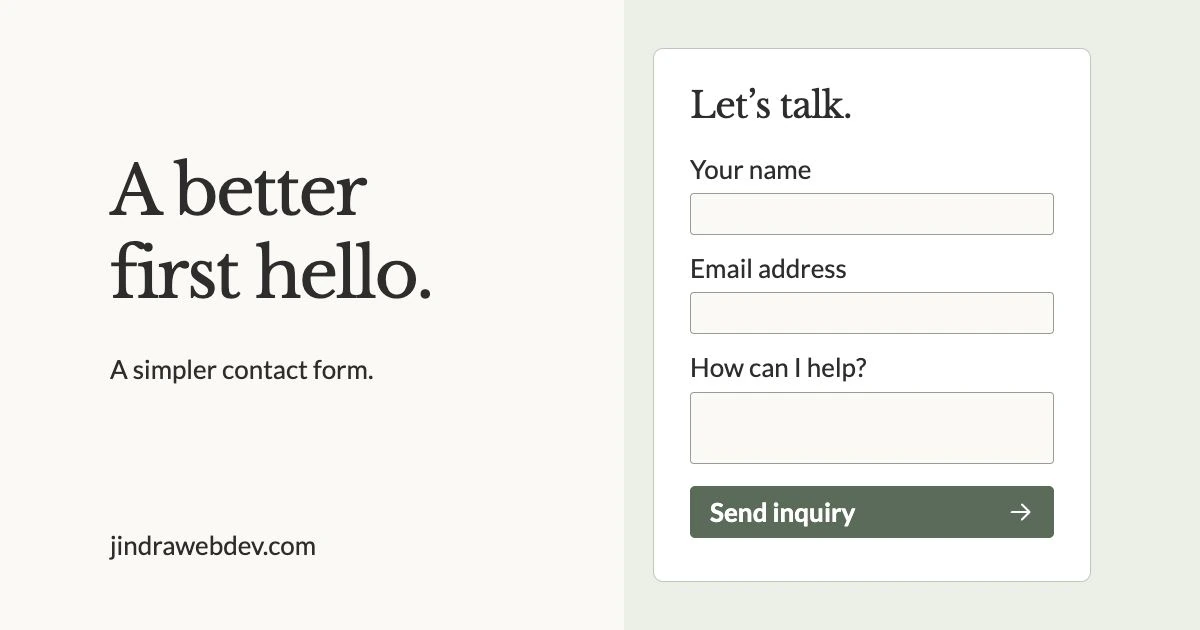
Here is a fictional starting point for a simple inquiry form. It is an illustration, not a working form or a rule that every business should use these exact fields.
Let's talk about what you need
A few sentences is a good place to start. All three fields are required.
Example only. A real form also needs the business's privacy information and an honest explanation of what happens next.
Notice that the labels remain visible above the boxes. People should not have to remember a disappearing hint while typing. W3C advises against using placeholder text as a substitute for labels and recommends clear instructions about required fields and formats. W3C's form-instruction guidance.
In the actual build, those visible labels must be connected to their fields in the code. Looking clear and working accessibly are related, but they are not the same check.
Make the phone experience feel easy
Try the form on your phone, not only on a large monitor. Can you read the instructions, tap each field comfortably, and reach the next question without the keyboard covering something important?
Correct field types can bring up a suitable keyboard, and appropriate autocomplete settings can help a browser fill familiar details such as a name or email address. These are small implementation choices that can reduce unnecessary typing. Browser behavior varies, so they still need testing. web.dev's interaction guidance.
Also try moving through the form with a keyboard on a computer. You should be able to see where you are and reach the controls in a sensible order. Accessibility checks need to include labels, instructions, focus, and feedback—not just how the page looks. W3C's accessible-form overview.
These checks are a useful starting point, not a complete accessibility audit.
Help people recover when something goes wrong
“Invalid input” does not tell a visitor much. “Enter an email address in the format name@example.com” gives them something they can act on.
W3C recommends clear error messages that identify the affected field and explain how to fix it. Feedback also needs to be available to people using assistive technology. A red border alone cannot do that job. W3C's notification guidance.
I would also test whether a correctable error wipes out the rest of the message. Someone who has carefully explained their situation should not have to begin again because they missed one field.
When a submission succeeds, explain the next step in plain language. For example: “Your inquiry has been submitted. I'll review your message and reply by email.” Add a response window only if the business can reliably meet it. Do not imply that an appointment is confirmed if the person has only requested one.
Check the journey after the send button
A thank-you message and a delivered inquiry are two different things. The page may be confirming that the server accepted a request, not that the email arrived in the business inbox.
For example, PHP's documentation explicitly distinguishes mail accepted for delivery from mail that reaches its intended destination. The exact behavior depends on how your website is built. PHP's mail documentation.
Run a real test with clearly labeled test information. Check the confirmation on the website, the destination inbox, any expected acknowledgment, and whether replying reaches the address entered. If your system keeps an inquiry record, check that too. Decide who will notice a delivery failure and how you will recover the request.
The part a visitor never sees matters just as much as the polished button.
Keep the information and the technical setup sensible
For an ordinary first inquiry, I would avoid asking for passwords, payment-card details, or sensitive personal documents. If a business genuinely needs sensitive information, that deserves a deliberately designed process rather than an extra box on a general contact page.
A developer should check the server-side handling as well as the visible form. OWASP explains that browser checks can be bypassed, so validation must also happen on the server. It also cautions that validation is not a complete defense against other security problems. OWASP's input-validation guidance.
Spam protection, access to saved inquiries, retention, and the accuracy of your privacy explanation belong in that review. A spam check alone is not a complete security or privacy plan.
Know when a custom form is worth considering
You may be well served by a standard form with clearer wording and better configuration. Custom development becomes worth discussing when the same manual work keeps happening after every inquiry.
For example, a contractor might need service-area questions that change with the requested job. An event space might need to route private-party and vendor requests differently. A nonprofit might need separate paths for service inquiries, partnerships, and volunteering.
Those are hypothetical examples, not promises that every platform supports the same solution. The existing website, connected tools, maintenance needs, and budget all matter. A calendar integration should also make clear whether someone is requesting a time or actually reserving it.
A useful starting brief is simple: “Here is what customers ask for, here is what I do with that information, and here is where the process gets awkward.” You do not need to choose the technology first.
Give your form one thoughtful test this week
Ask someone who is not familiar with the business to send a test inquiry. Watch where they hesitate. Then check what arrived and whether you have enough information to respond.
Pick one improvement: remove an unnecessary requirement, explain a confusing question, fix an error message, or make the follow-up more dependable. There is no need to turn a manageable improvement into an entire rebuild.
I help small businesses in Omaha and eastern Nebraska improve existing websites and build custom features around the way they work. That can include a clearer inquiry form, a quote-request workflow, or a booking connection—not just a brand-new site.
Tell me what you wish your website's contact form could do.
Sources checked October 19, 2026. This article shares established guidance, not a new platform announcement. Examples are illustrative.